On this page
TL;DR
Webflow can natively schedule a brand-new CMS item to publish, but only if it has never gone live before, and only on CMS, Business, or Ecommerce plans.
Native scheduling can't schedule a republish of an already-live item. You'd have to unpublish it first, which takes it off the site in the meantime.
Scheduled times follow your site's configured timezone in Site Settings, not a timezone you pick per item.
There's still no native way to schedule a full-site publish, or to move a CMS item to Draft or Archive automatically.
Publish Pilot covers those gaps: scheduled republish, scheduled draft/archive, scheduled full-site publish, and scheduled HTML element changes.
You've added next week's announcement to a Webflow CMS collection. It's finished. You want it live Tuesday at 9am. Not right now.
Webflow actually has an answer for that, as long as the item has never been published before. But the moment you're editing something that's already live, or you need the whole site to go out on a schedule, the native feature stops helping.
This post covers exactly what Webflow's native CMS scheduling does, where it stops, and how to schedule a Webflow CMS item to publish, or republish, automatically when the native feature can't.
What "publishing" a CMS item means in Webflow
There are two things people call "publishing," and the difference matters here.
- Publishing: taking a new or draft CMS item live for the first time.
- Republishing (publishing again): pushing an edit to an item that is already live. When you change a live item, the change doesn't appear on your site immediately. It sits as a staged change until the next publish.
In both cases, the item's state lives in Webflow's staging until a publish happens. Nothing a visitor sees changes until you publish.
What Webflow's native CMS scheduling actually does
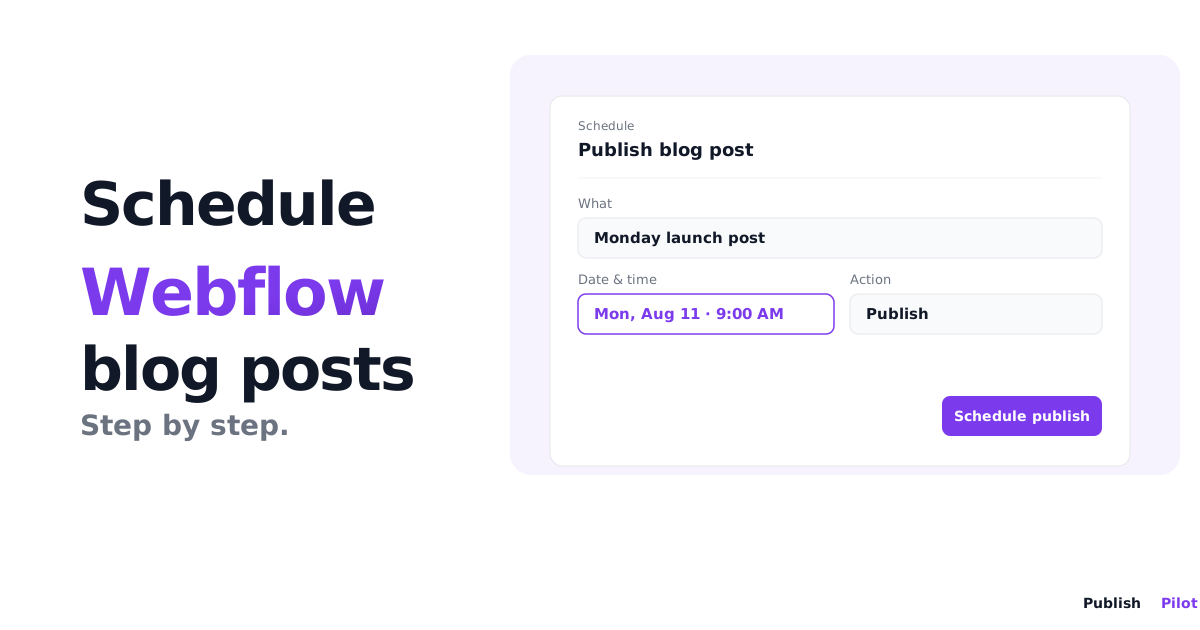
Webflow does let you schedule a single Collection item to publish at a future date and time, natively, with no third-party tool required. Open the item, click the status dropdown in the top right corner, choose Schedule, and set the date and time. When the moment arrives, Webflow publishes just that item.
Two things to know before you rely on it:
- Plan gated. Scheduled publishing isn't available on Starter or Basic Site plans. You need a hosted site on a CMS, Business, or Ecommerce plan.
- Site timezone, not item timezone. The date and time you pick are relative to your site's configured timezone in Site Settings, not a timezone you choose per schedule. Check that setting before you rely on "9am" meaning what you think it means.
Running a manual full-site publish doesn't cancel a scheduled item. It still fires at its scheduled time.
Where Webflow's native scheduling stops
The catch is the phrase "never been published." Native scheduling only works on a Collection item that hasn't gone live before. The moment an item has been published even once, the Schedule option disappears for it.
That creates real problems the moment you need to touch something that's already live:
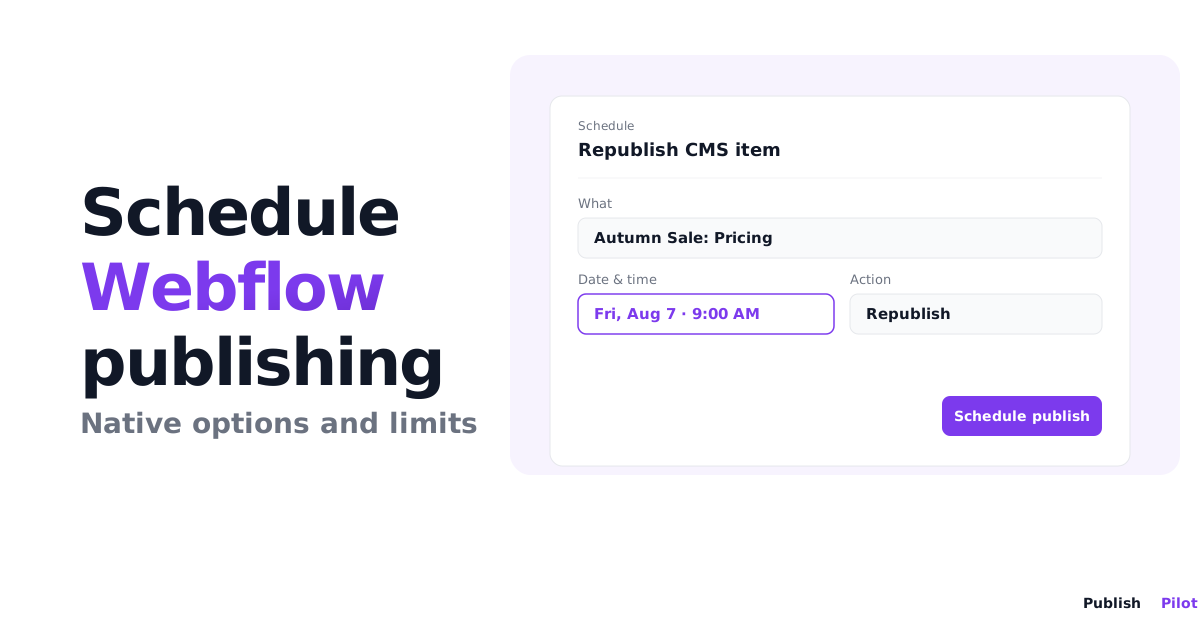
- You edited a live pricing item and want the update (a republish) to appear at midnight when the new price takes effect. Native scheduling can't do this. Your only option is to unpublish the item now, which pulls it off the site, then manually publish it again at midnight.
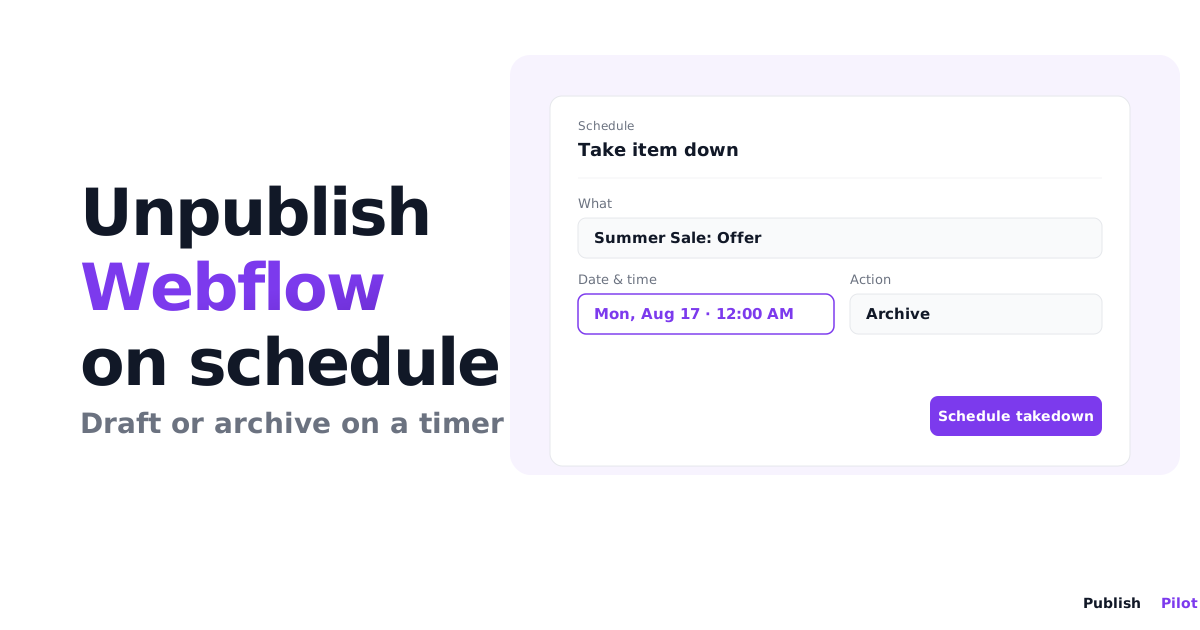
- The item should move to Draft or Archive automatically after a promotion ends. Webflow has no scheduled action for that.
- You want the whole site to go live at a precise minute: a relaunch, a rebrand, a coordinated release. There's no native way to queue a full-site publish for a future time. Someone still has to be at their desk to click Publish.
Native Webflow scheduling answers "publish this new item, later." It has no answer for "republish this live item, later," or "publish everything, later."
How to schedule what Webflow's native feature can't
This is the gap Publish Pilot fills. Instead of being limited to items that have never gone live, you schedule the publish, republish, draft, or archive of any CMS item, plus full-site publishes and HTML element changes.
Here's the flow for a CMS item:
- Prepare the item in Webflow. Create the new item, or edit the live one, and leave the change staged.
- Connect your Webflow site to Publish Pilot once, via Webflow OAuth.
- Pick the CMS item you want to publish, republish, draft, or archive.
- Choose the date and time it should happen.
- Confirm and close the tab. At the scheduled moment, Publish Pilot runs the action automatically.
What Publish Pilot schedules
Beyond CMS items, Publish Pilot covers two things Webflow has no native scheduling for at all:
- Site Publish: schedule a full-site publish across your selected domains at a specific date and time, without anyone clicking Publish.
- Element Styling: schedule a change to a specific element on your site (a banner, a color, a price) by its CSS class or ID, and optionally have it revert automatically at a later time.
Common mistakes to avoid
- Assuming an already-live item can be scheduled natively. It can't. Webflow's Schedule option only appears on items that have never been published.
- Unpublishing a live item to "reset" it for scheduling. That takes it off your site until you manually publish it again. There's a live gap unless you time it carefully or use a tool that schedules the republish directly.
- Assuming scheduled times use your local timezone. Webflow's native scheduling uses your site's Site Settings timezone, not your browser's.
- Publishing the whole site to release one item. That pushes every other staged change live with it. Schedule the single item instead.
Webflow native scheduling vs Publish Pilot
| Capability | Webflow native | Publish Pilot |
|---|---|---|
| Schedule a brand-new CMS item to publish | Yes (CMS, Business, Ecommerce plans) | Yes |
| Schedule a republish of an already-live CMS item | No | Yes |
| Schedule a CMS item to Draft or Archive | No | Yes |
| Schedule a full-site publish | No | Yes |
| Schedule an HTML element change (banner, color, price) | No | Yes |
Summary
Webflow can natively schedule a brand-new CMS item to publish, on the right plan, on your site's configured timezone. What it can't do is schedule a republish of a live item, a full-site publish, or a CMS item moving to Draft or Archive. That's exactly where most teams get stuck. Publish Pilot covers those gaps, so you're not stuck unpublishing items or babysitting a publish button to hit a deadline.
Ready to stop babysitting the Publish button? Start your free trial and schedule your first automatic CMS publish in minutes.
Frequently asked questions
Yes, for a Collection item that has never been published before. Open the item, use the status dropdown in the top right, and choose Schedule. It's available on Webflow's CMS, Business, and Ecommerce plans, not Starter or Basic.
No. Native scheduling only works on items that have never gone live. To change the timing of an edit to a live item, you'd need to unpublish it first, which takes it off the site until you publish again. Webflow has no way to schedule that republish for you.
Your site's configured timezone in Site Settings, not a timezone you pick per item. If your team publishes across timezones, check that setting before you schedule anything time-sensitive.
No. Webflow has no native way to queue a complete site publish for a future date and time. Publishing the whole site is still a manual click, unless you use a third-party tool.
Publish Pilot schedules what Webflow's native scheduling doesn't cover: republishing a live CMS item, moving an item to Draft or Archive automatically, publishing the whole site on a schedule, and scheduling HTML element changes like a banner or price.
No. Both Webflow's native scheduling and Publish Pilot run in the cloud at the scheduled time, whether or not you're online.